
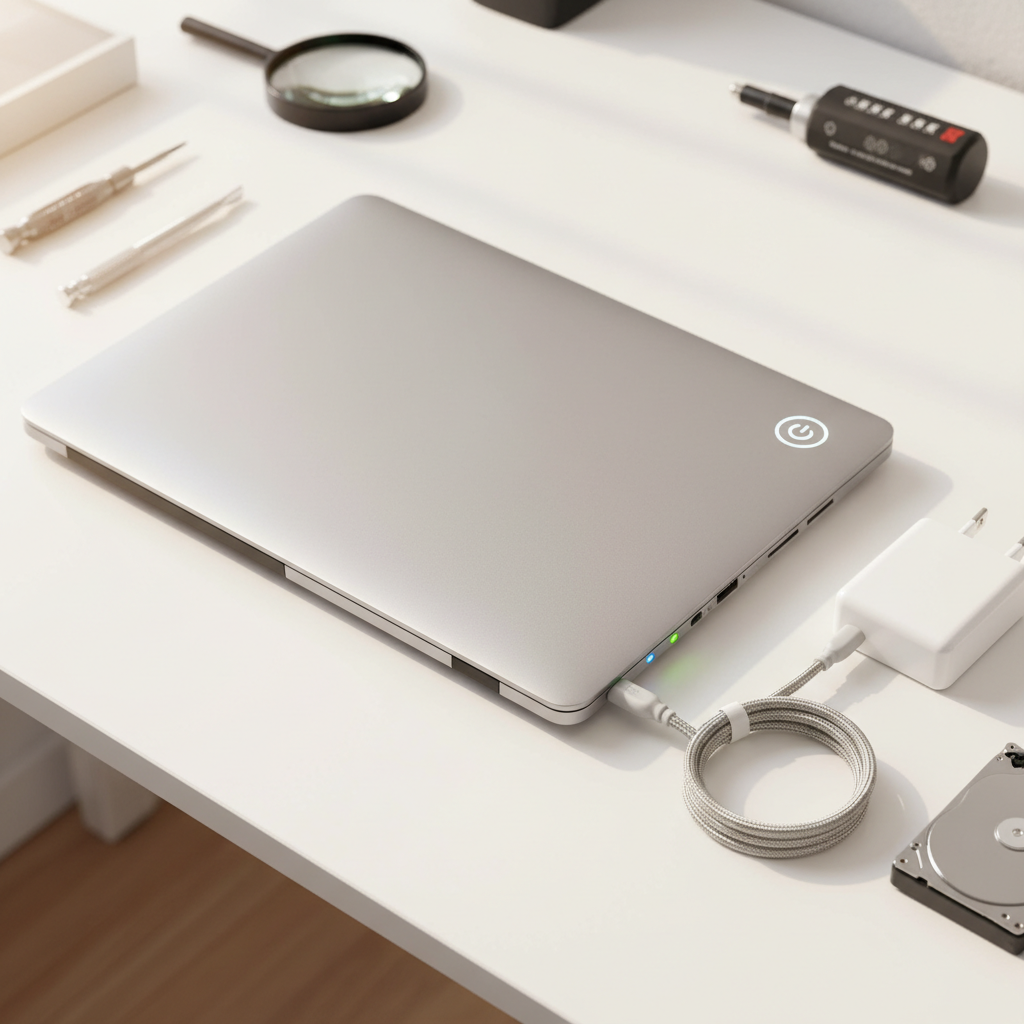
Few things are more frustrating than pressing your laptop's power button and getting no response. When your laptop won't turn on, it can feel like a crisis, especially if you need it for work or school.
Before you panic, there are several diagnostic steps you can take to identify the problem and determine whether it's something you can fix yourself or if you need professional help.
Check Your Power Source First
The most common reason a laptop won't turn on is a power issue. Start with these basic checks:
- Verify your power outlet is working by plugging in another device
- Inspect your charging cable for visible damage, fraying, or bent connectors
- Check that all connections are secure between the outlet, adapter, and laptop
- Look for the charging indicator light on your laptop—if it's not illuminating, your charger may be faulty
If you suspect your charger is the culprit, you may need a replacement. Browse our selection of laptop chargers compatible with most major brands. A faulty charger is one of the easiest problems to solve when your laptop won't turn on.
Perform a Hard Reset
Sometimes laptops freeze in a state that prevents them from powering on normally. A hard reset can clear temporary configurations and resolve the issue:
Disconnect all external devices including USB hubs, external displays, and wireless adapters. If you regularly use accessories like a USB 3.0 hub or WiFi adapter, remove them temporarily. For laptops with removable batteries, take out the battery, hold the power button for 30 seconds, then reconnect everything and try powering on. For non-removable batteries, hold the power button for 15-20 seconds while unplugged.
Test for Display Issues
Your laptop might actually be turning on, but the display isn't working. Listen carefully for fan noise, hard drive sounds, or LED indicators when you press the power button. If you hear activity but see nothing:
- Shine a flashlight at an angle on the screen—if you can faintly see an image, your backlight has failed
- Try connecting to an external monitor using an adapter like our 4K DisplayPort to HDMI adapter
- Press the function key combination to toggle between display modes (usually Fn + F4, F5, or F8)
If your laptop displays on an external monitor but not its own screen, you're dealing with a display hardware failure rather than a more serious motherboard issue.
Check for Battery Problems
A completely dead or failing battery can prevent your laptop from turning on, even when plugged in. Try running your laptop with the charger connected but the battery removed (if possible). If it works without the battery, you've identified the problem.
Battery issues are among the most common reasons a laptop won't turn on after it's been stored for a while or has been in use for several years. Check our inventory of laptop batteries to find a replacement that matches your model specifications.
Recognize When You Need Professional Help
If you've tried all these steps and your laptop still won't turn on, you're likely dealing with a hardware failure that requires professional diagnosis. Common issues that need expert repair include:
- Motherboard failure
- Power jack damage
- Internal component failure
- Liquid damage corrosion
- Overheating damage to internal circuits
These problems require specialized tools, replacement parts, and technical expertise to diagnose and repair properly.
Get Expert Help at Your Local Repair Shop
When your laptop won't turn on and basic troubleshooting doesn't resolve the issue, it's time to bring it to professionals who can properly diagnose and repair hardware failures. Our experienced technicians can identify the exact problem and provide cost-effective repair solutions.
Don't let a non-functioning laptop disrupt your productivity. Contact your local repair shop today for a professional diagnostic assessment, or browse our selection of quality accessories and replacement parts to keep your devices running smoothly.