
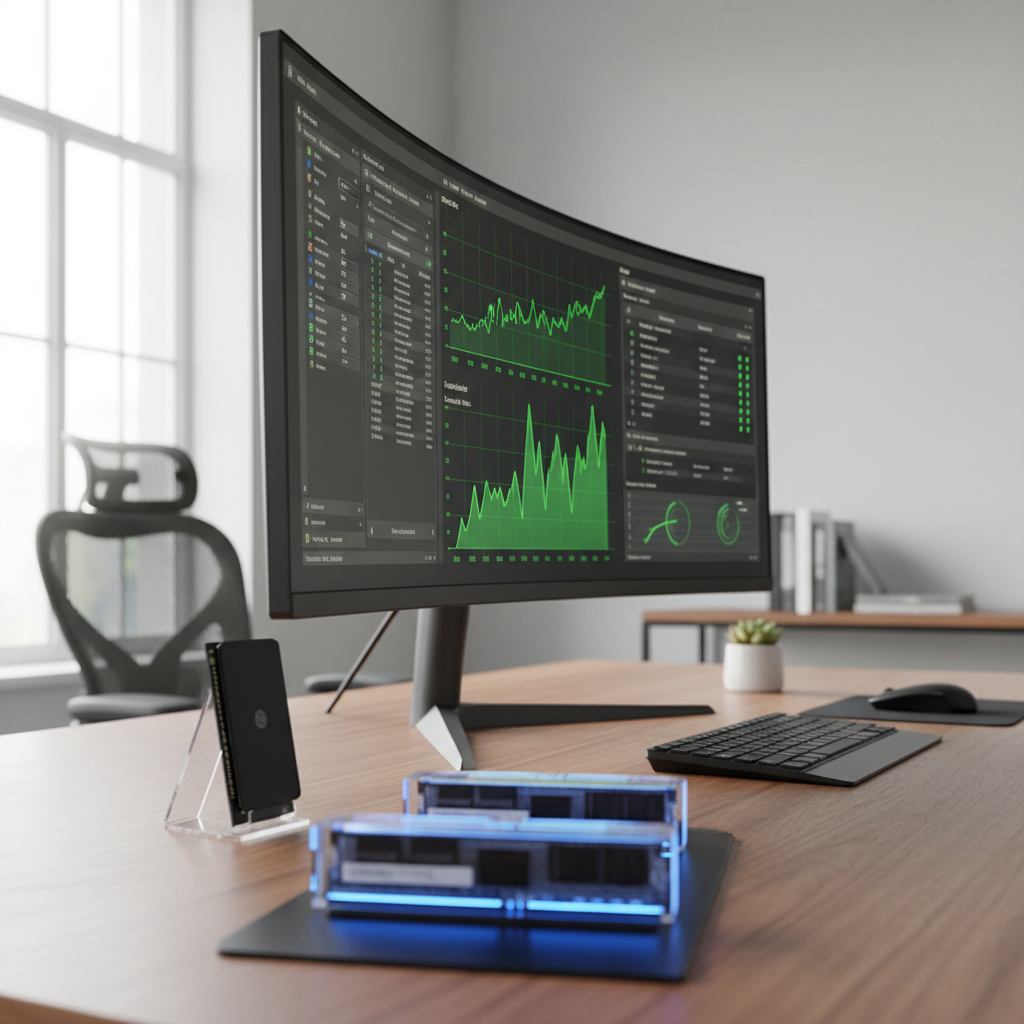
Is your computer running slower than usual? Before you consider replacing it, there are several practical steps you can take to restore its performance. This guide will walk you through proven computer performance optimization techniques that can breathe new life into your sluggish system.
Identify What's Slowing Your Computer Down
The first step in computer performance optimization is diagnosing the problem. Open your Task Manager (Ctrl+Shift+Esc on Windows) or Activity Monitor (on Mac) to see which programs are consuming the most resources. Look for:
- High CPU usage from specific applications
- Memory (RAM) usage approaching 80-90% capacity
- Disk usage consistently at 100%
- Background processes you don't recognize
If your RAM usage is consistently maxed out, upgrading your memory can provide immediate relief. For laptops, consider the Crucial 32GB DDR4 SODIMM RAM, while desktop users might benefit from the Crucial 16GB DDR4-2666 Desktop RAM or the more robust Crucial 32GB (4 x 8GB) DDR4-2666 kit for power users.
Clean Up Your Startup Programs
Many programs automatically launch when you start your computer, significantly slowing boot times and overall performance. Review your startup items and disable unnecessary programs. On Windows 10/11, go to Settings > Apps > Startup. On Mac, navigate to System Preferences > Users & Groups > Login Items. Disable anything you don't need running immediately at startup—you can always launch these programs manually when needed.
Free Up Disk Space and Defragment
A cluttered hard drive can severely impact performance. Delete temporary files, old downloads, and programs you no longer use. Windows users should run Disk Cleanup, while Mac users can use the built-in storage management tool. If you're using a traditional hard drive (not an SSD), defragmenting can improve read/write speeds. Windows has a built-in defragmentation tool under "Optimize Drives." Note that SSDs should never be defragmented.
Update Drivers and Operating System
Outdated drivers and operating systems can cause compatibility issues and performance bottlenecks. Ensure your graphics card, chipset, and other hardware drivers are current. Enable automatic updates for your operating system to receive the latest performance improvements and security patches. For specialized hardware like the Dell Brocade Fibre Channel Adapter, always check manufacturer websites for the latest driver versions.
Consider Hardware Upgrades or Replacement
If you've tried all software-based computer performance optimization techniques and your system is still sluggish, it may be time for hardware upgrades. Adding more RAM, upgrading to an SSD, or replacing aging components can dramatically improve performance. Sometimes, investing in new custom-built computers makes more economic sense than upgrading very old systems. If you're building or upgrading, explore our selection of motherboards and combos for the foundation of a faster system.
Scan for Malware and Remove Bloatware
Malware, viruses, and pre-installed bloatware can consume valuable system resources. Run a full system scan with reputable antivirus software and remove any threats detected. Uninstall bloatware—pre-installed software you never use—through your system's control panel. This simple step often yields surprising improvements in computer performance optimization results.
Need professional help with your slow computer? The team at Willetton Computers can diagnose performance issues and recommend the best solutions for your specific needs. Browse our range of performance-boosting hardware or contact us for personalized advice on getting your computer running like new again.